Use your iPhone as a remote for your Mac.
Arrow keys, trackpad and keyboard, over Bluetooth. No Wi-Fi setup, no accounts. Get started →
MacOSApple Silicon
 Coming sooniPhone app
Coming sooniPhone app
See It in Action
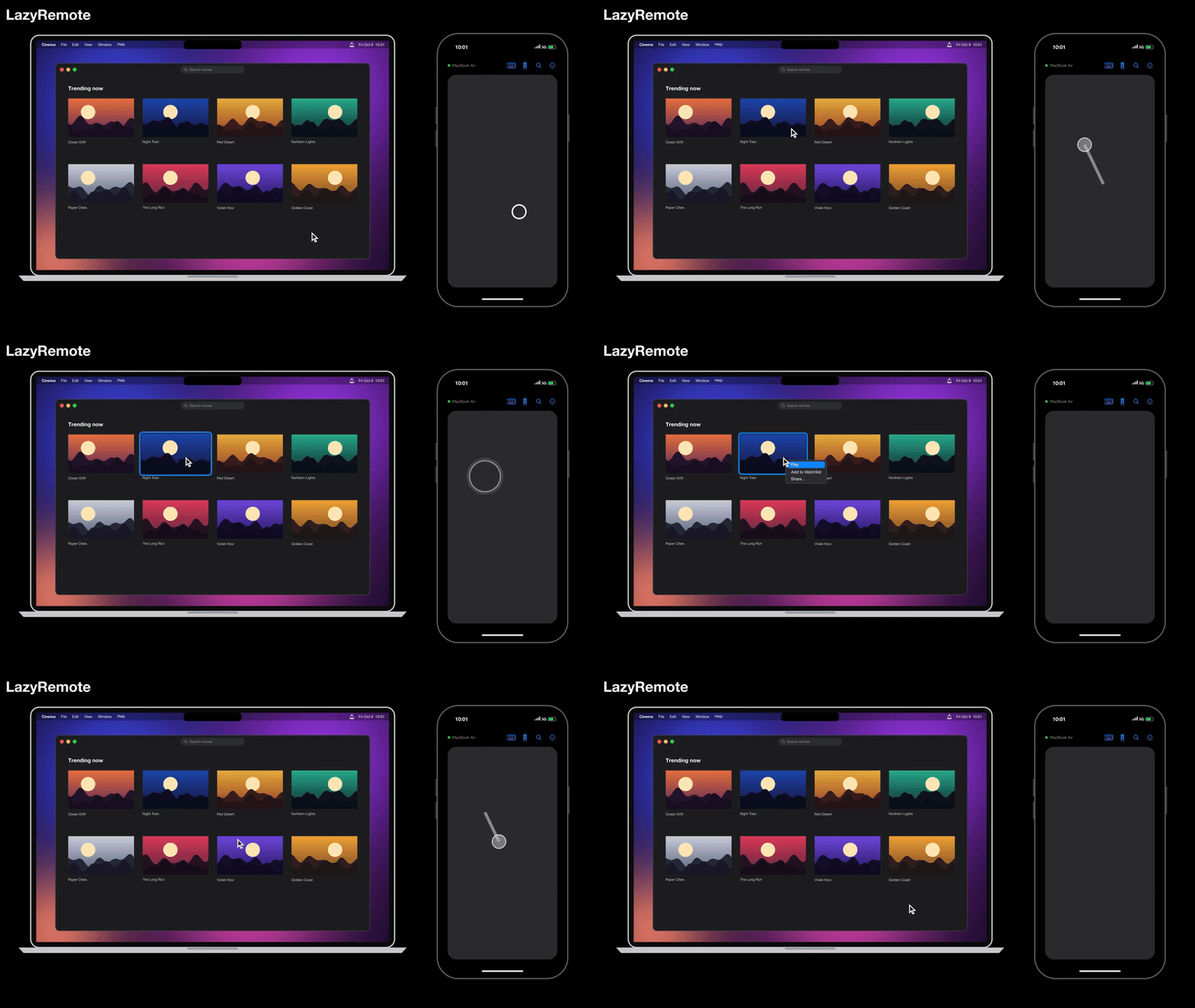
Trackpad
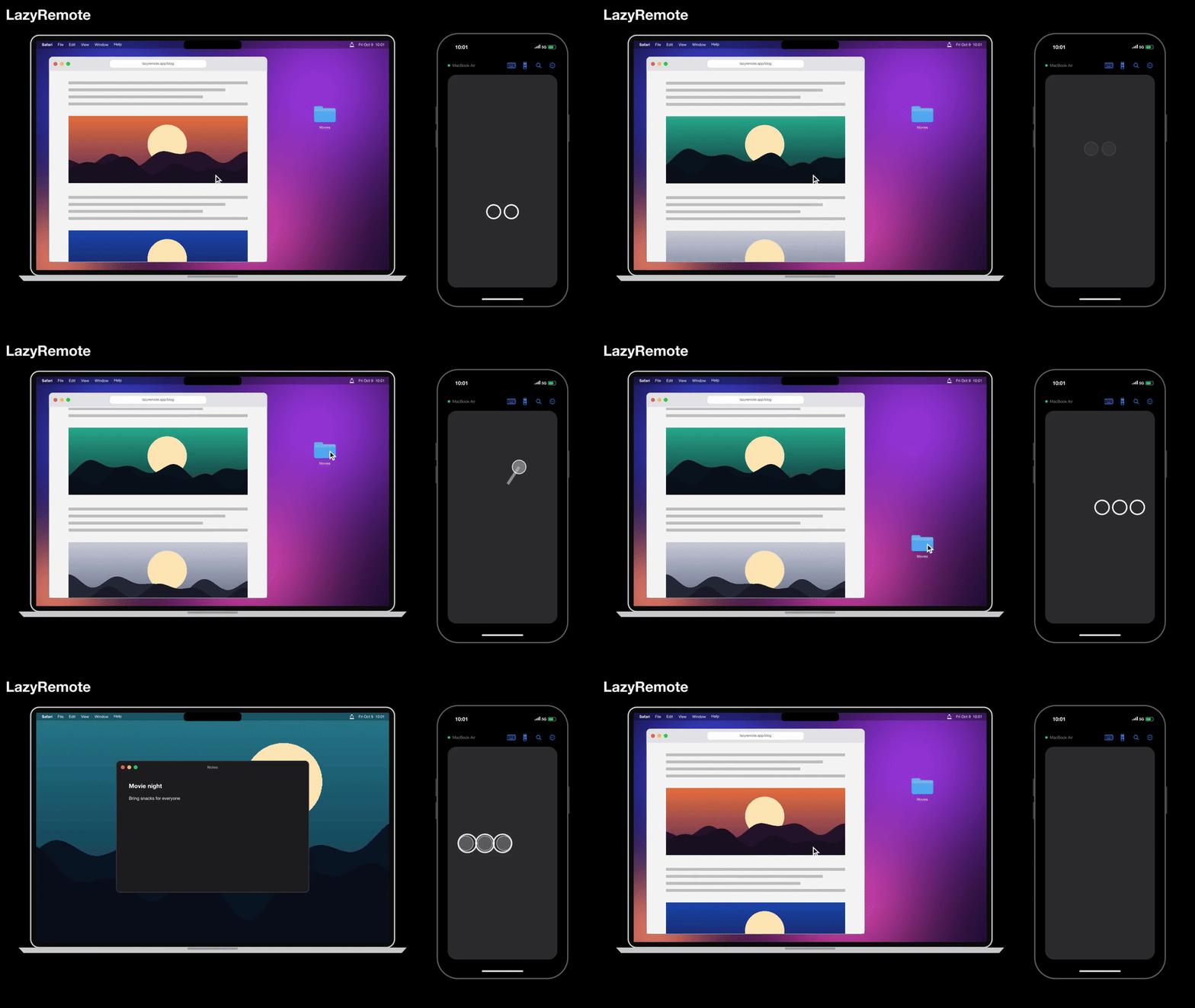
Floating Remote
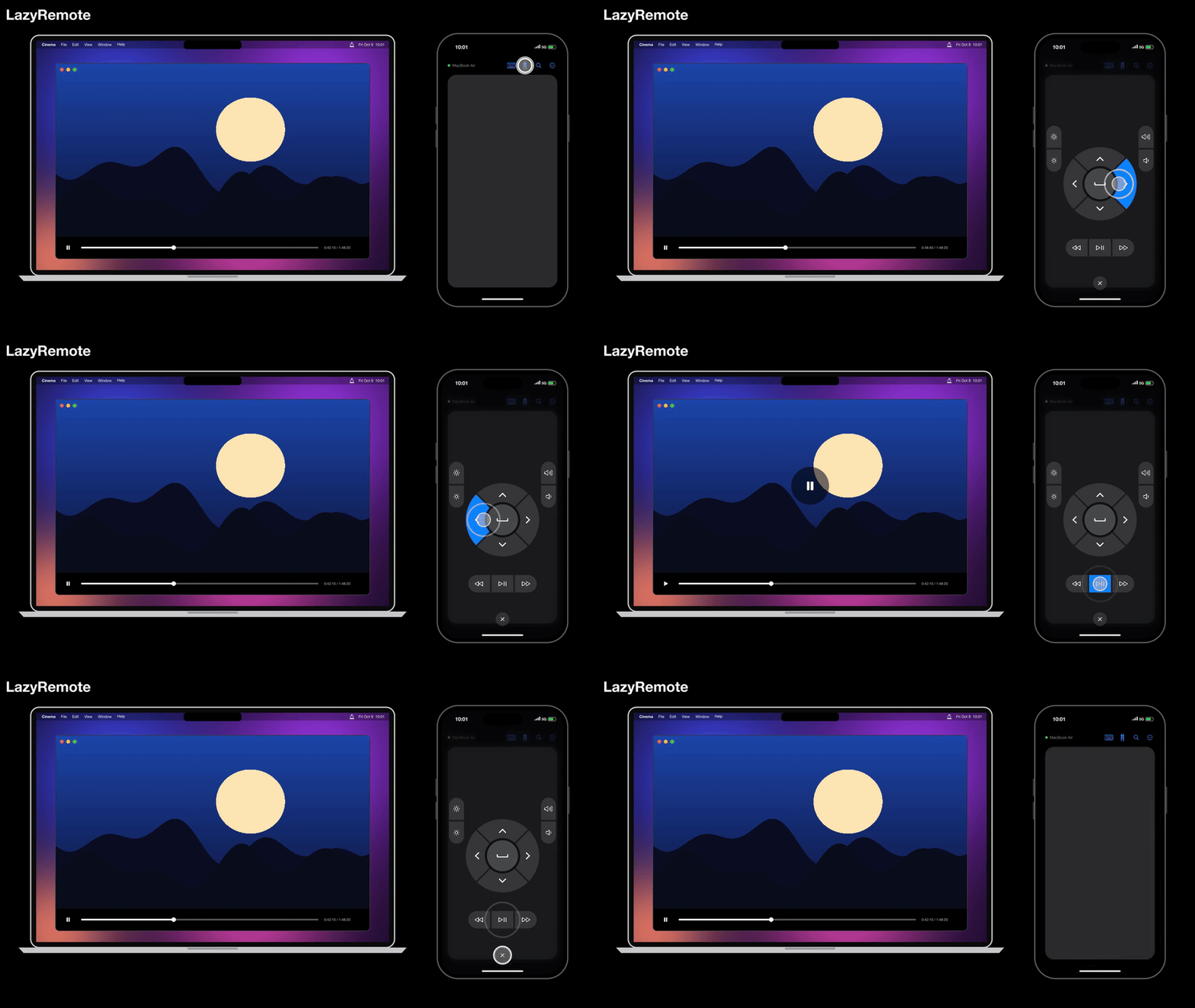
Keyboard
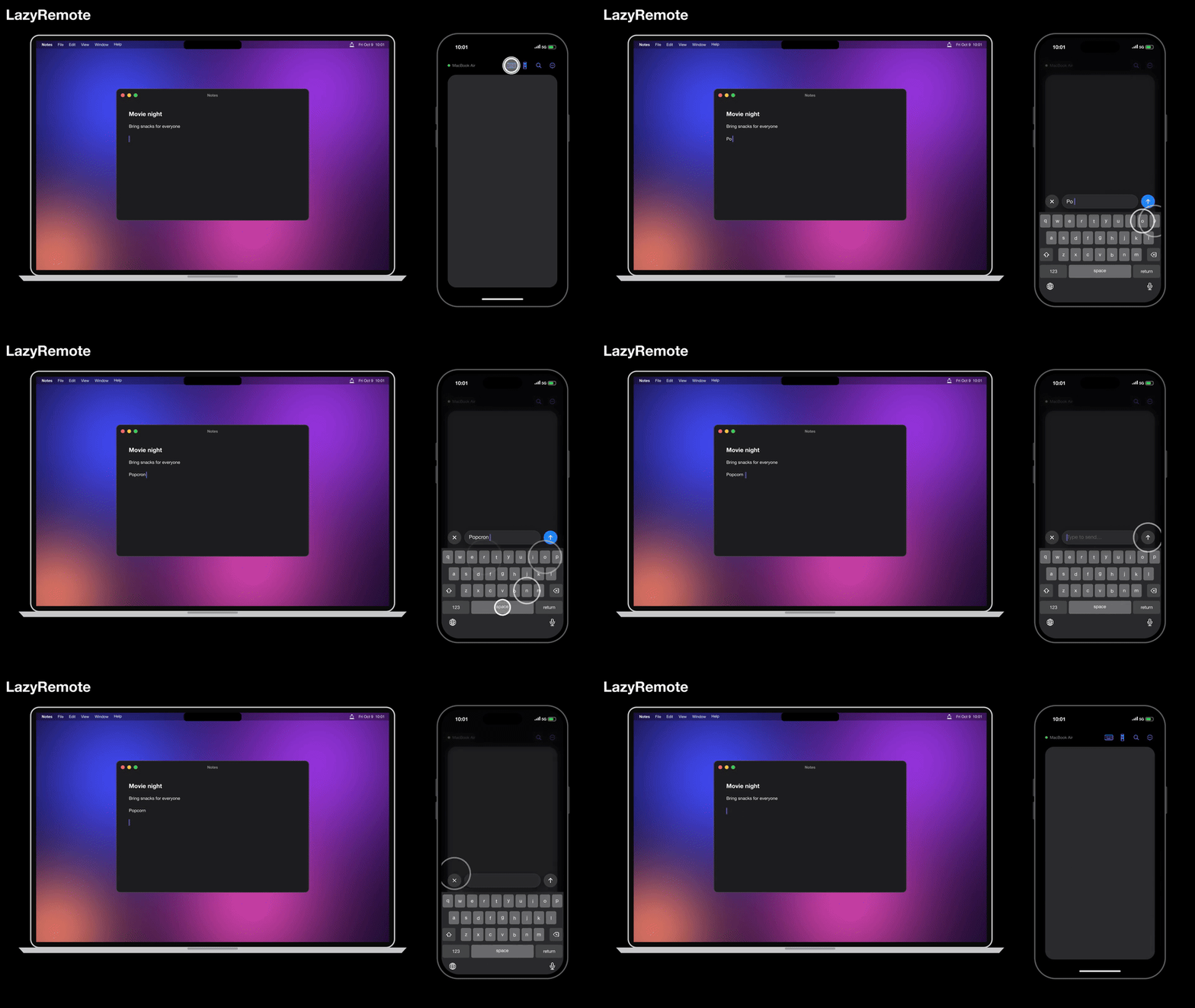
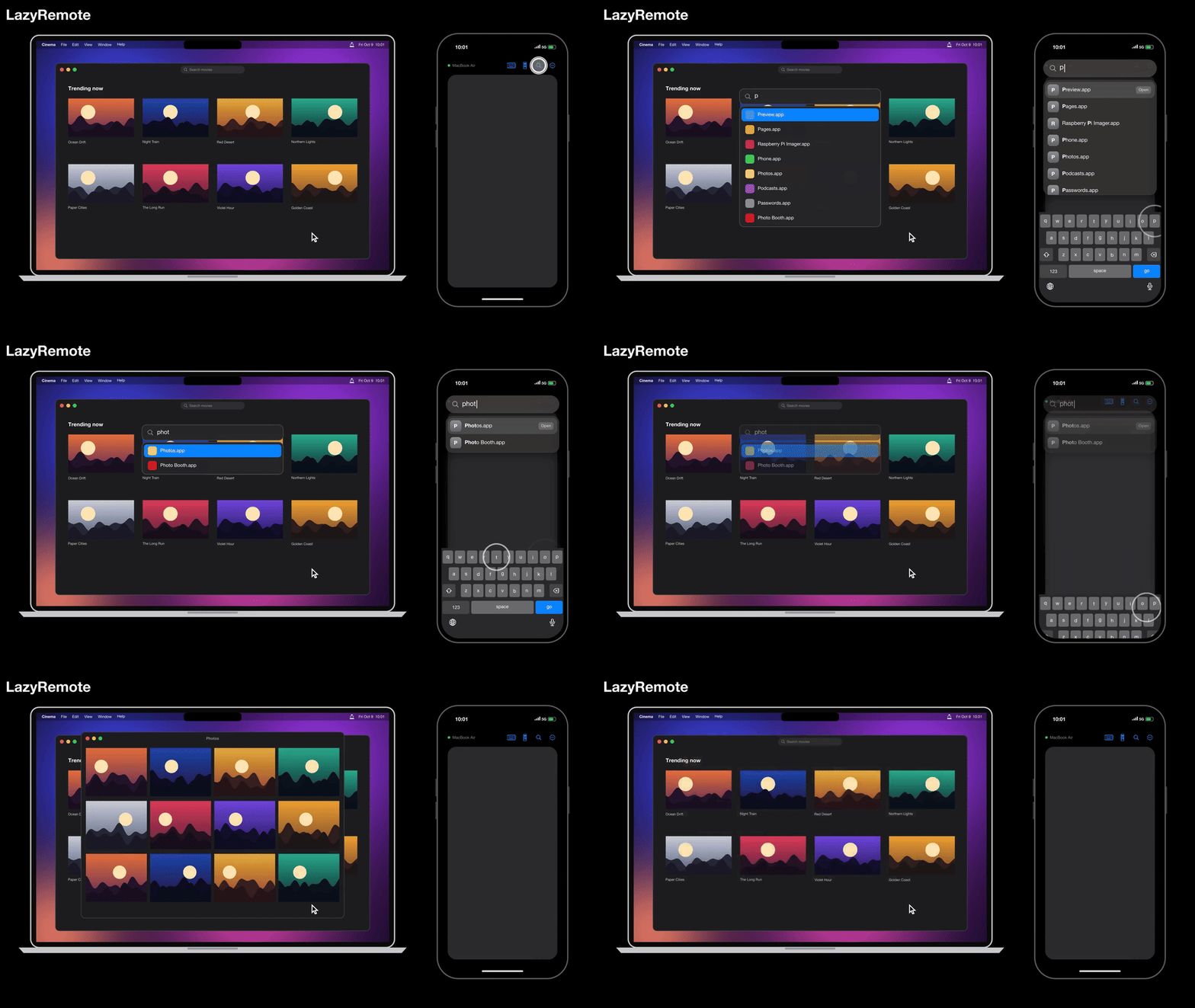
Spotlight
Features
- Arrow keys and play/pause: control videos and presentations without leaving your seat.
- Floating Remote and Keyboard: two buttons docked in the top bar; drag one out to place it anywhere on the screen, or back to dock it. Tap Remote for the D-pad, Keyboard to type.
- Trackpad: move the cursor; tap to click, two-finger tap to right-click.
- Gestures: two-finger scroll with momentum, long-press to drag, and three-finger swipe for desktops and Mission Control.
- Keyboard: tap the keyboard button and type; the words appear on your Mac as you type.
- Any language and emoji: type in any script, emoji included.
- Spotlight: opens Spotlight on your Mac by sending ⌘ Space, then type your search from the iPhone. Results appear on your iPhone as you type (view only). Press go to open the top result, or tap outside to cancel. A custom Spotlight shortcut isn't supported.
- Direct and encrypted: connects over Bluetooth, with no Wi-Fi setup or accounts.
- Free: no ads, no tracking, no in-app purchases.
Support
Installation
iPhone
The iPhone app will be on the App Store soon.
Mac
- Download LazyRemote.dmg.
- Open LazyRemote.dmg.
- Drag LazyRemote into the Applications folder.
Quickstart
- On your Mac, open LazyRemote.
- When macOS asks for Bluetooth access, select Allow.
- Make sure that the LazyRemote icon comes into view in the menu bar.
- Click the LazyRemote icon.
- Select Open Accessibility Settings….
- Set LazyRemote to on.
- On your iPhone, open LazyRemote.
- When iOS asks for Bluetooth access, select Allow.
- On your Mac, click the LazyRemote icon in the menu bar.
- Select Allow followed by the name of your iPhone.
- Make sure that the iPhone shows the name of your Mac with a green dot.
- Use the trackpad to control your Mac. To type, tap the keyboard button in the top bar and start typing; the text appears on your Mac as you go.
Troubleshooting
Buttons do nothing on the Mac
LazyRemote needs Accessibility access to send key presses and clicks. Open System Settings › Privacy & Security › Accessibility and make sure LazyRemote is on. If it already is, turn it off and on again, then restart LazyRemote.
The iPhone can't find the Mac
- Make sure Bluetooth is on for both devices, and that both apps have Bluetooth permission (iPhone: Settings › LazyRemote; Mac: System Settings › Privacy & Security › Bluetooth).
- Make sure LazyRemote is running and enabled in the Mac menu bar.
- On the iPhone, tap the … menu and select Reconnect.
The connection is refused after reinstalling
For security, LazyRemote refuses a Mac or iPhone whose identity has changed. Only after verifying the intended device, select Forget Mac in the iPhone's … menu, select Remove next to the iPhone in the Mac menu bar, and then pair again.
Contact
Report a problem or ask a question at github.com/ibrahimaltay/lazy-remote-for-desktop/issues.